You bought a planner, dragged the file onto your tablet, opened it, tapped the tab marked January, and the links do nothing. The page just sits there. Nothing jumps, nothing scrolls, nothing highlights, so you assume you picked the wrong app and you go looking for a better one.
Nine times out of ten the app is fine.
Digital Planner Apps get blamed for three separate problems that look identical from the outside. The app is in the wrong mode. The platform never supported PDF links at all. Or the file has no hyperlinks inside it to begin with.
Those three have three different fixes, and only one of them involves installing anything.
Short version: if your tabs will not respond, switch the app out of editing mode into reading mode before you try anything else. In GoodNotes that is the crossed out pencil icon in the top right corner.
If the tabs still do nothing after that, your planner is a flat PDF with no links baked in, and no app can add them for you. A hyperlinked undated set is the only thing that fixes that case.
Annotator Or Planner: Which Kind Of App Your File Needs
There are two completely different products wearing the same name, and almost every roundup on the subject mixes them together.
The first kind is a PDF annotator. You import a file, it shows you the pages, and you write on top of them with a stylus or a finger.
GoodNotes, Notability, Noteshelf, Xodo, Samsung Notes and Penly all live here. These are the apps that open a planner you downloaded or paid for, because a digital planner is a PDF.
The second kind is a task planner. Todoist, TickTick, Notion, ClickUp, Sunsama, Any.do.
You do not import anything into those. You type tasks into them and they organise the tasks. Good software, nothing to do with the file sitting in your downloads folder.
This matters because the top of Google for Digital Planner Apps is full of the second kind, written for people who want a to do list. If you came here holding a file, you need the first kind.
So before you read a single app name, answer one question. Do you want to handwrite on pages that already exist, or do you want software to track your tasks?
Everything below is about the first answer, and it assumes the pages you write on are worth writing on. A set built for an annotator behaves differently from a printable PDF someone exported for paper.
What Working Actually Means Inside A Digital Planner
People say a planner works or does not work without ever defining the word. Here is the list I use. A planner is working when four things are true.
- The internal hyperlinks move you. Tapping the month tab jumps to that month. Tapping a date in the grid jumps to that day. Tapping home returns you to the index.
- The side tabs exist as links, not just as graphics. Plenty of files draw the tabs and stop there. They look like tabs in the preview image. They are decoration.
- The pages are undated, or dated for the year you actually want. An undated set lets you start mid month without wasting pages. A set built for an older year is a file you throw away.
- The page size matches your screen ratio. A file drawn at paper proportions leaves grey bars down both sides, and your handwriting lands in the wrong place after a rotation.
Free planners usually fail two of those four, and they fail them silently.
There is no error message for a PDF without links. You tap, nothing happens, you blame the software.
Reading mode is free. Switching apps is free. But a file with no hyperlinks inside it cannot be repaired from the outside, which is where a set that ships with its links stops being optional.
Read Only Mode And Why Your Planner Hyperlinks Do Nothing
This is the fix nobody writes down, and it solves the majority of cases.
PDF annotators have two states.
In editing mode every tap is treated as ink. The app assumes you are about to write, draw, highlight or erase, so it swallows the tap instead of following the link underneath.
In reading mode the app stops treating taps as ink and starts treating them as navigation. Only then do the hyperlinks fire.
In GoodNotes the toggle is the pencil icon in the top right corner of the toolbar. A line through it means reading mode, and your tabs will work. A normal pencil means editing mode, and they will not.
People flip this by accident constantly, because writing is the other thing you came to do, and writing needs editing mode.
Notability does the same under a different label. Its toolbar carries a hand or pointer tool alongside the pens, and selecting it is what lets taps pass through to the links.
The habit worth building: write in editing mode, navigate in reading mode, and expect to toggle several times per session. It feels clumsy for a week and then goes invisible.
If reading mode is on and the tabs still refuse to move you, stop troubleshooting the app. The problem has moved into the file, and the undated bundles I keep going back to exist because that case has no software fix.
Which Platforms Really Open PDF Links
Here is the part that gets glossed over everywhere.
Whether PDF hyperlinks work is a property of the app and the operating system together, not of the planner. The same file behaves differently depending on where you open it.
Which is why one person swears a planner is broken while another says it is perfect.
| Where you open it | Internal PDF links | What to expect |
|---|---|---|
| iPad, GoodNotes or Notability | Yes | The dependable pairing. Reading mode required for taps to register. |
| iPad, built in Files preview | Partly | Links often fire, but you cannot write, so it is only good for testing a file. |
| Android tablet, Xodo or Samsung Notes | Varies by app and version | Test your own file before you commit a year to it. Link handling here is uneven. |
| Windows, Android or a browser tab | Mostly no | Link support on these is still discussed as a feature request, not a finished feature. |
| Any phone screen | Technically yes | The tabs are too small to hit. Fine for checking a date, painful for planning. |
If you are searching for digital planner apps for android, read that third row twice.
It is not that Android cannot do this. It is that the behaviour depends on which annotator you installed and which version you have, so the only honest answer is to test your file on your device before the first of the month.
A set that was built and tested against an annotator gives you one fewer variable while you work out what your device does.
Choosing Between GoodNotes And Notability For A Bought Planner
These two come up more than every other name combined, and the comparison is simpler than it looks, because the parts that matter here are identical.
Both open PDFs. Both keep internal hyperlinks alive. Both work with a pressure sensitive stylus. Either one will open the planner you bought.
The differences are about how you live in the app afterwards.
GoodNotes organises everything into folders and notebooks, which suits running several planners at once: one for work, one for the shop, one for the household. Search across handwriting is the feature people stay for.
Notability keeps a flatter structure and leans into recording and annotation, which suits one planner plus a pile of reference documents. Its pen feel is what its users defend hardest, and pen feel is genuinely personal.
My advice is unromantic. Pick whichever one you already own, and only consider switching when you hit a wall you can name.
People lose weeks comparing two apps that both do the job, while the planner file sits unopened in a downloads folder. Spend that attention on the file instead, because whether the tabs are real links changes your week far more than which pen engine you use.
What The Stylus Does And What The File Does
The second half of the original complaint is handwriting. The stylus writes badly, or writes in the wrong place, or lags behind your hand.
Again the app takes the blame for things it does not control.
The stylus controls three things: pressure, tilt and palm rejection.
Uniformly thick lines mean either a pen tool with pressure switched off or a stylus that does not report pressure at all. Stray marks from your hand mean palm rejection is off, or the operating system is not recognising your stylus as a stylus.
The file controls two things, and these are the ones nobody suspects.
First, page dimensions. Writing on a page drawn at paper proportions inside a tablet shaped viewport puts your strokes slightly off from the boxes, and a rotation makes it worse.
Second, layers. A planner exported as one flattened image per page is heavier to redraw than one exported as proper vector pages, and that redraw delay is what you feel as lag.
Test it in ten seconds. Open a blank note in the same app and write a line.
Smooth on a blank page but sluggish inside the planner means the file is the problem, not the stylus and not the app. The sets with a Canva source file let you fix the page size yourself instead of living with it.
Free Digital Planner Apps And Where They Stop
There are two separate questions hiding in the phrase free digital planner app, and conflating them is how people end up disappointed.
The first is a free app.
Xodo, Samsung Notes, OneNote and the stock Files preview on an iPad all cost nothing and all open PDFs. If your budget is zero, the app half of this is genuinely solved, and I would not spend anything until you hit a limit you can describe.
The second is a free planner file, and that is where the ceiling sits.
Free planner files are almost always one of three things:
- A single month or a single week rather than a full year.
- A flat PDF with drawn tabs and no working hyperlinks.
- A sample of a paid set with most of the pages removed.
Switching to reading mode on a flat file does nothing at all, because there is nothing under the tab to follow.
There is also the part people only discover later. Free files normally arrive under a personal use licence.
If you run a shop and you hoped to include a planner inside your own product, or edit one and hand it to a client, a personal use licence forbids exactly that. It is not a technical limit you can work around.
A free planner app is a solved problem. A free planner file is a one month, no links, personal use sample, and those three limits arrive together.
That is the line where a bundle with a resale friendly licence stops being a luxury. If you sell files yourself, the licence question is the same one I walk through in how to sell printables on Etsy.
When The File Breaks Instead Of The App
I keep an eye on what sellers of digital products talk about, because the gap between what gets sold and what gets supported is where buyers fall through.
Across 9877 seller posts I pulled from two large shop owner communities, planners came up 37 times. The app a buyer would open that planner in came up three times in the whole sample.
That is the problem in one number.
The person selling the file is not thinking about which app you will open it in. The person buying it assumes the app will sort that out. Nobody owns the handoff, so it lands on you in the middle of planning your week.
Signs the file is at fault rather than the app:
- Reading mode is on, the tabs are drawn, and tapping them still does nothing.
- The same file behaves identically in two different annotators.
- A tab jumps to the wrong page, consistently off by the same amount.
- Pages are a mix of sizes, so the view resizes as you swipe through months.
- There is no index or home page to return to, only a linear stack of pages.
None of those are fixable from your side. A planner either shipped with its links and its structure or it did not.
Which is why the files worth keeping are the ones built with the links in from the start. If you are on the selling side of that handoff, what belongs inside a delivered file is the whole subject of digital downloads to sell on Etsy.
And if you are the seller, name the apps you tested the file in, right in the listing. One line saying the tabs were checked in GoodNotes and Notability removes most of the messages you would otherwise answer after the sale.
Moving A Planner Into Another App Without Losing Pages
Sometimes the answer really is a different app, usually because you started in a stock viewer and now you want to handwrite.
Moving is easy if you move the original and not your copy.
Export or share the original PDF, not a screenshot and not a printout, then import it into the new app. Internal hyperlinks survive that move because they live inside the PDF itself.
Your handwriting is the part that does not travel cleanly.
Ink lives in the app, not in the file. Exporting a planner you have already written in produces a flattened PDF: your notes come across as part of the page image, and the hyperlinks usually come across broken.
That gives you an archive, not a working planner.
So the practical order is to import the clean original into the app you intend to stay in, keep the annotated copy as a read only archive, and start fresh pages from today.
Undated sets make this painless, which is one more reason an undated hyperlinked set is worth hunting for.
If a planner is one of several file types you are weighing up for a shop, digital products to sell sorts them by what actually moves.
Keep the original download somewhere you will find it again. Every time you change device or app, that untouched file is what you import, and a flattened export cannot replace it.
Checking A Planner Before Your First Planning Day
Five minutes of testing on the day the file arrives saves a month of irritation. Do this before you write anything in it.
- Open the file in the app you plan to live in, not in whatever opened it automatically.
- Switch to reading mode and tap three different month tabs. All three should jump.
- From inside a month, tap a single date. You should land on that day, not near it.
- Find the way home. Tap the index or home icon and confirm it returns you.
- Switch to editing mode and write one line. Check the ink lands where your stylus is.
- Rotate the device and write again. Offset ink after a rotation is a page size problem.
- Swipe through several months and watch whether the page stays the same size.
If steps two through four fail, you have a flat file, and the honest move is to replace it rather than fight it.
If steps five and six fail, the file was drawn at the wrong proportions.
Either way you found out on day zero instead of in week three, and replacing it with a set that passes all seven steps costs you an evening instead of a season.
Planner Files That Hold Up Inside These Apps
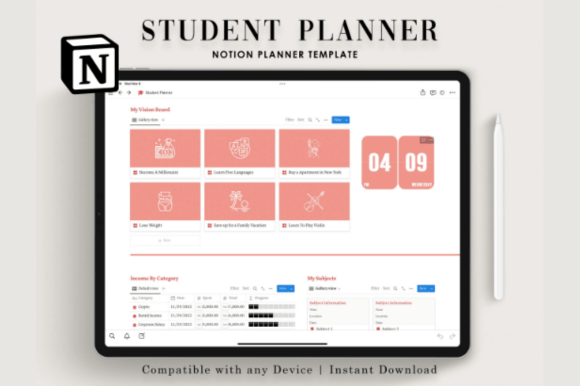
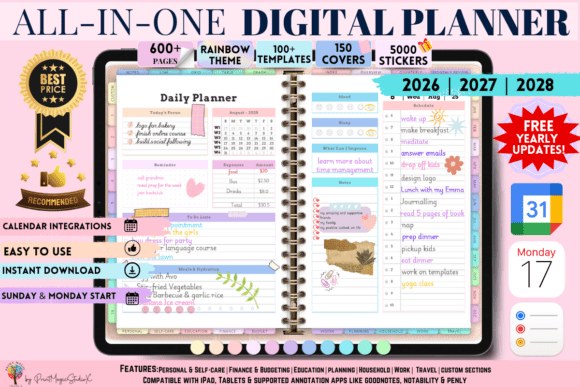
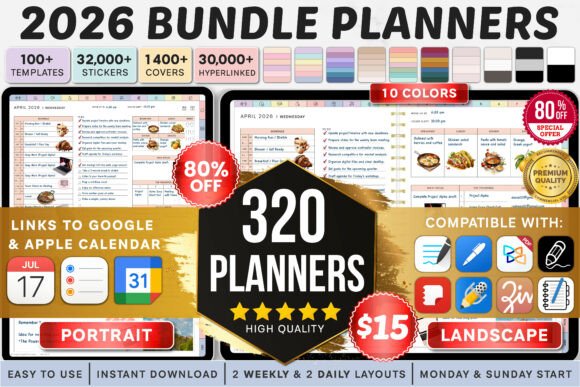
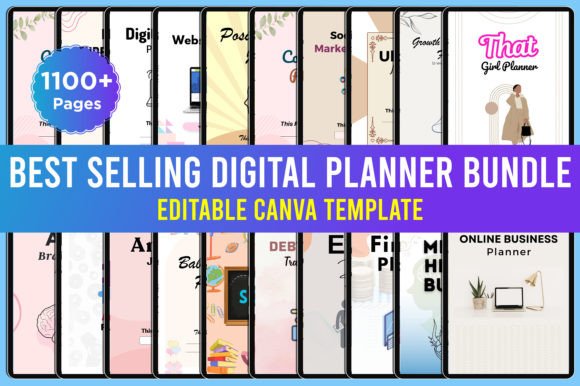
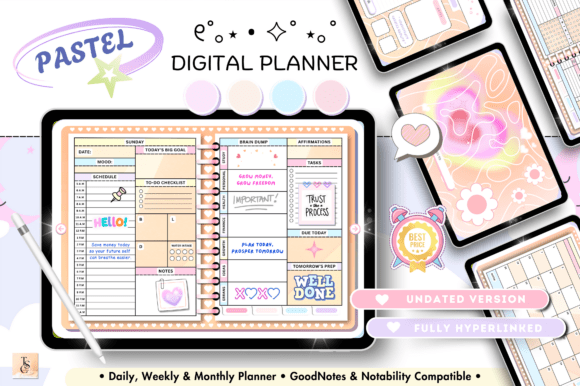
These three are undated hyperlinked sets, which is the combination that passes the test above.
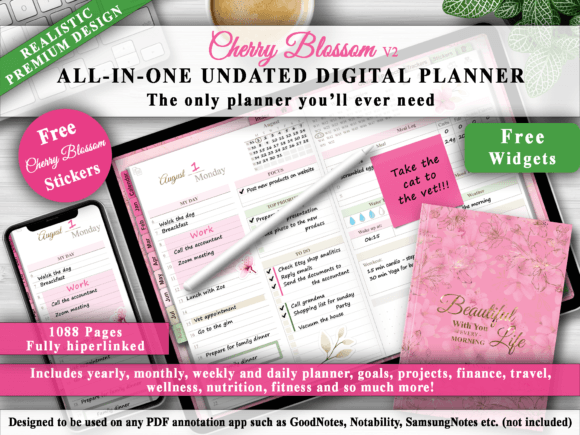
Each opens in a PDF annotator with working tabs, and each comes with an editable source so you can adapt the pages instead of living with someone else’s layout.


If you are on the other side of this and selling planners rather than using them, the same structure decides your refund rate. Start with digital products to sell on Etsy for what buyers actually look for, and how to create digital products to sell for turning a blank file into a listing.
Key Takeaways
- Reading mode first. Most dead tabs are an editing mode problem, not an app problem.
- PDF annotators open planner files. Task planners do not, however highly they rank.
- Link support belongs to the platform. An iPad annotator is the dependable pairing; Windows, browser tabs and some Android apps are not.
- Lag and offset ink usually come from page dimensions inside the file, not from your stylus.
- Free apps are fine. Free planner files are where the hyperlinks, the full year and the right to pass the file on run out.
- Test tabs, dates, the home link and one handwritten line on day zero, and replace a flat file with a hyperlinked undated set rather than fighting it.

Digital Planner Apps FAQ
Why do the hyperlinks in my digital planner not work?
Almost always because the app is in editing mode, where taps are treated as ink instead of navigation. Switch to reading mode and try again. If the tabs still do nothing in two different apps, the file has no hyperlinks inside it.
Do I need a paid app to use a digital planner?
No. Several free annotators open PDFs and keep internal links alive. The limit you are more likely to hit sits in the planner file rather than in the app.
Can I use a digital planner on Windows or in a browser?
You can view it and write on it with some tools, but internal PDF link support on those platforms is still treated as a request rather than a shipped feature. Expect to scroll instead of tapping tabs.
Which is better for a bought planner, GoodNotes or Notability?
Both open hyperlinked PDFs and both handle a stylus properly, so neither is a wrong answer. Choose GoodNotes for folders and handwriting search, Notability for its pen feel and a flatter structure.
Why does my stylus write in the wrong place?
Open a blank note and write there. If that feels right and the planner feels wrong, the page proportions in the file do not match your screen, which also explains ink that shifts after you rotate the device.
What is the difference between a dated and an undated planner?
A dated set has the calendar printed in, so it is only useful for the year it was built for. An undated set lets you start any month and reuse the pages, which is why an undated hyperlinked set survives a move to a new app or a new device.
Start By Checking The File You Already Have
Before you install anything else, open the planner you already own, switch the app into reading mode, and tap a month tab.
That one action settles which of the three problems you actually have, and two of the three cost nothing to fix.
And if the reason you bought a planner was to get a side income organised, passive income ideas for beginners has the setup costs written down, while print on demand products covers the physical half of the same shop.
If it turns out the file is flat, undated and hyperlinked is the combination to look for next time, and that is a property of the planner, not of the app you open it in.
Planning to sell one yourself after all this? Digital products to sell online has the honest test, and Etsy shop ideas covers the shop around it.